Appearance
CardFAQ & FAQAccordion
An expandable accordion component that displays frequently asked questions with numbered items and detailed answers. Used on the homepage FAQ section to address common customer questions.
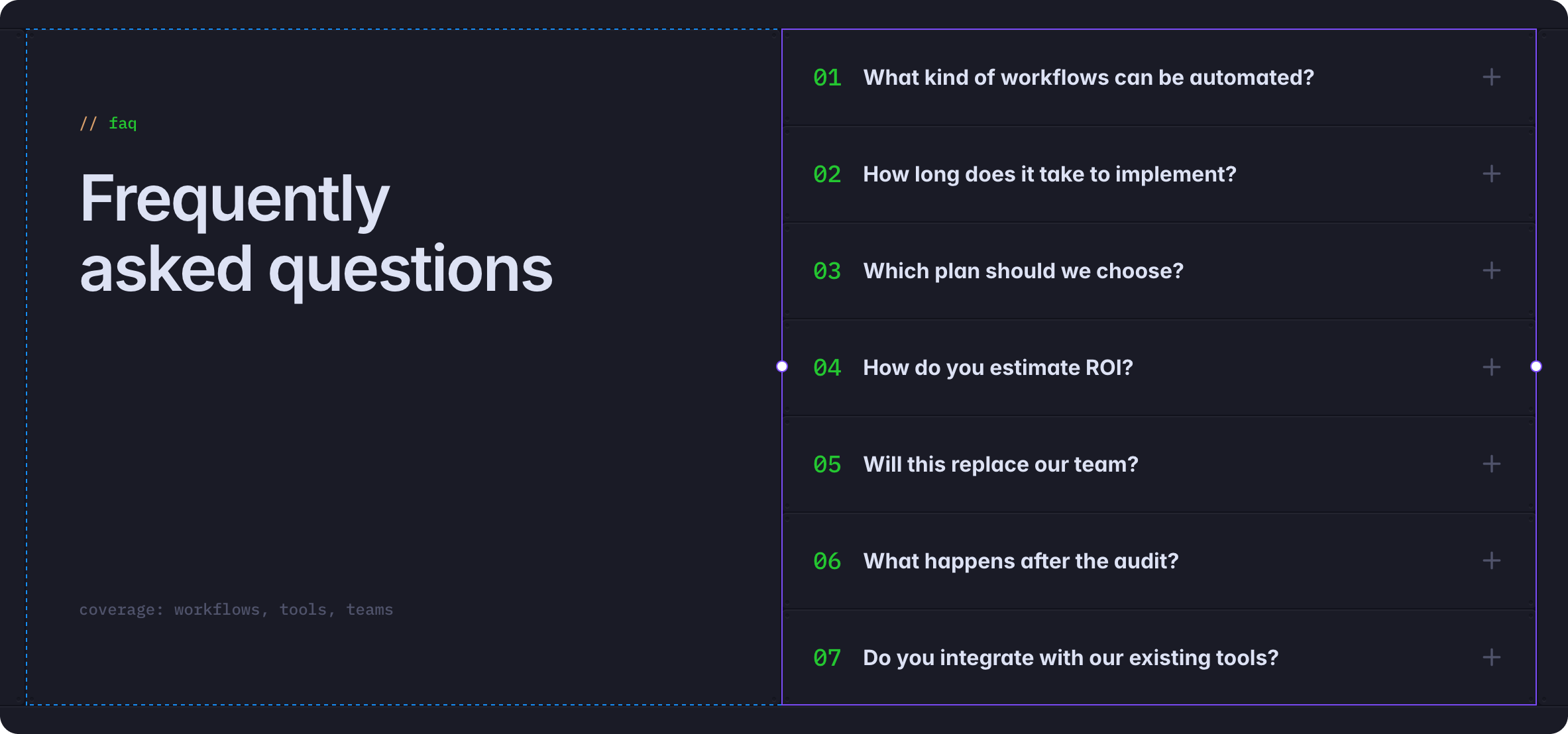
Overview
FAQAccordion is the main container component that includes:
- Multiple FAQ items organized in an accordion
- Collapsible/expandable question-answer pairs
- Numbered questions (01, 02, 03, etc.)
- Responsive variants for different question states
CardFAQ is an individual question-answer item with:
- Question number
- Question title
- Detailed answer text
- Expand/collapse interaction
How to Edit
Edit with Edit Component
To customize FAQ items:
- Select FAQAccordion on the canvas OR in the Layers panel
- Click Edit Component button in Properties
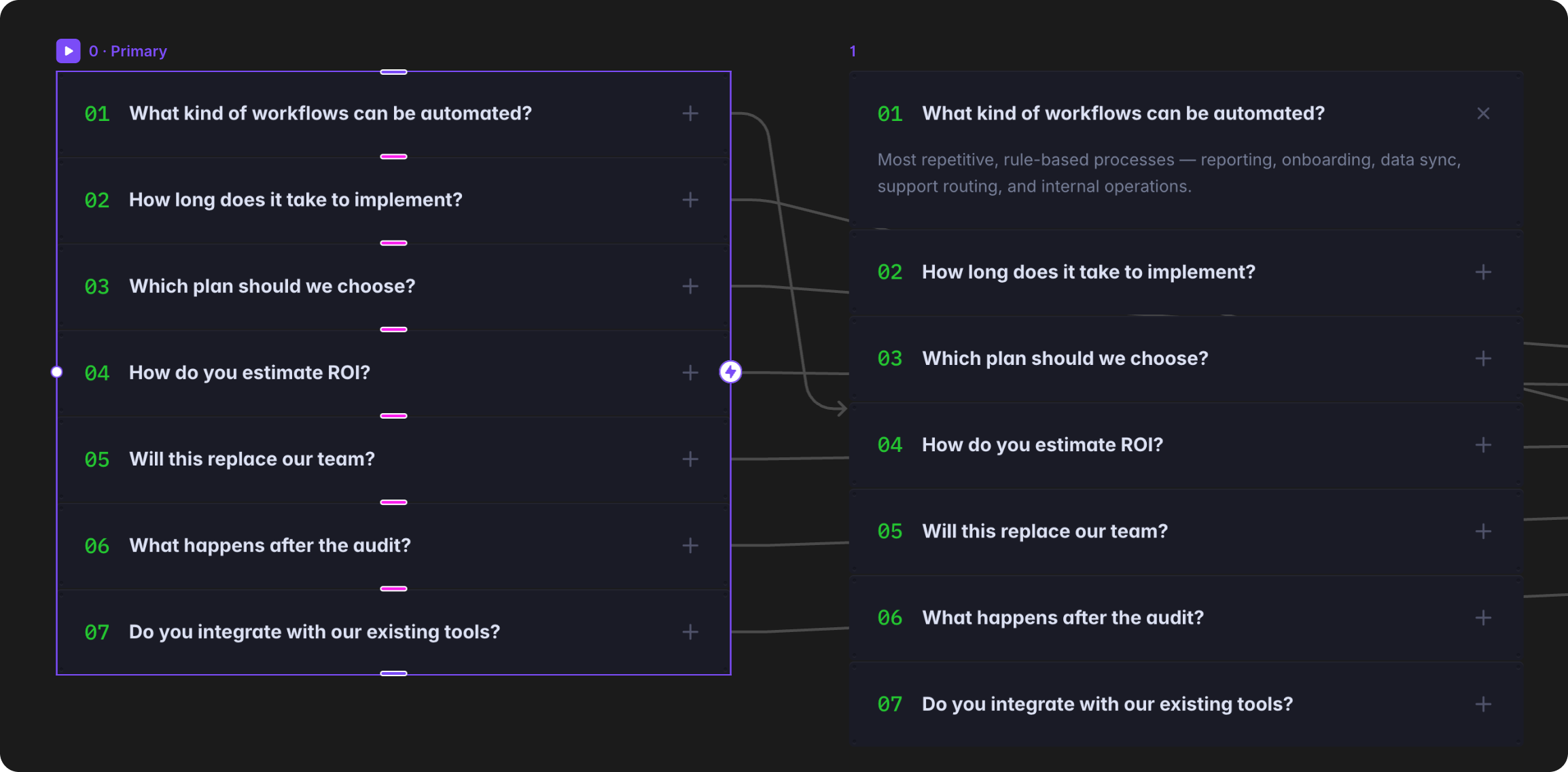
- You'll see variants for each question state:
- 0 | Primary — The main/primary state (edit here)
- Additional variants for other expanded question states
WARNING
Always make FAQ edits in the 0 | Primary variant. Changes automatically apply to all other variants.
Edit Individual Questions
To edit a specific question and answer:
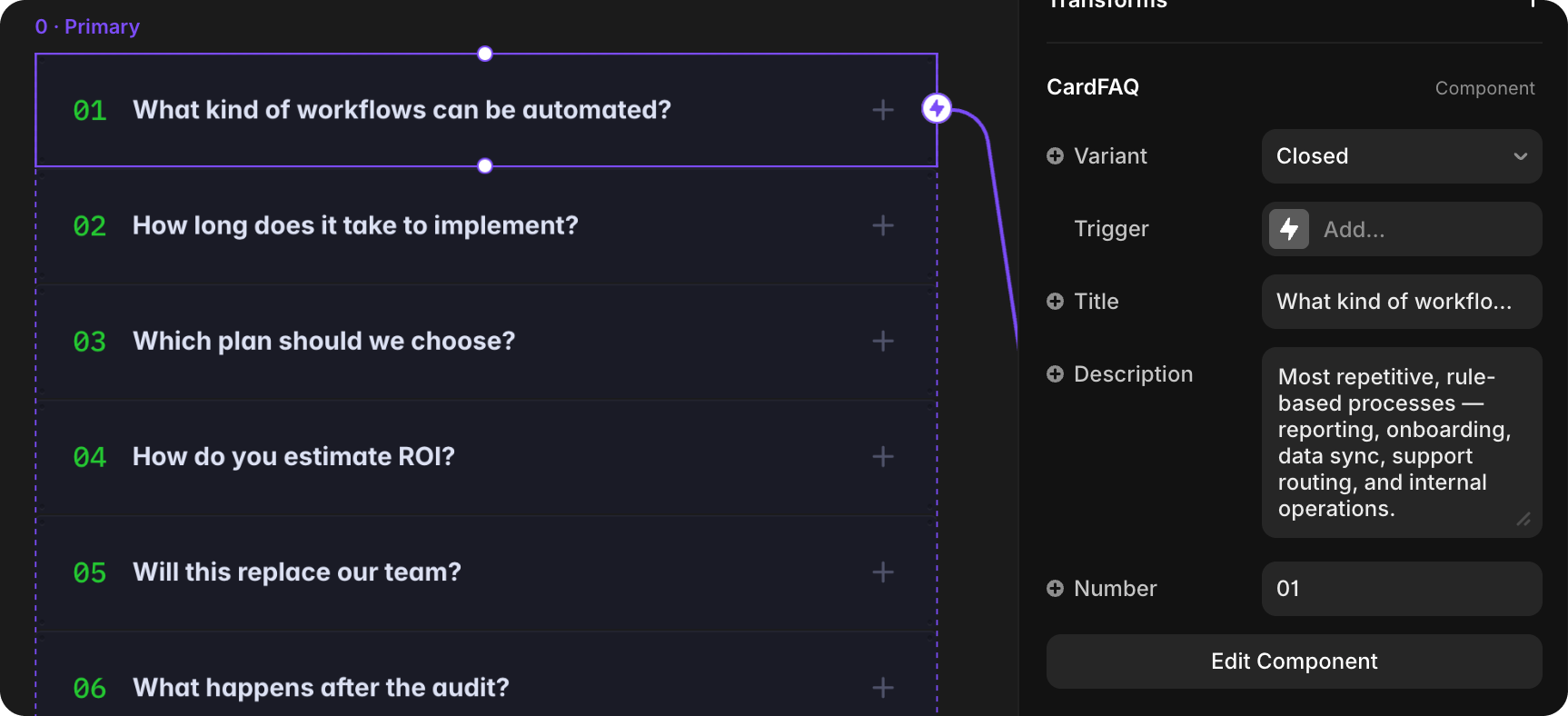
- Find and click on the specific question (CardFAQ component) in layers or canvas
- In Properties, update:
- Number — Question number (e.g., "01", "02")
- Title — The question text
- Description — The full answer text
Add a new question
Step 1: Add the question to 0 | Primary variant
- Click Edit Component on FAQAccordion
- In the 0 | Primary variant, find the CardFAQ list
- Duplicate an existing CardFAQ (e.g., duplicate question 07)
- Update the new question:
- Number — New question number (e.g., "08")
- Title — Question text
- Description — Answer text
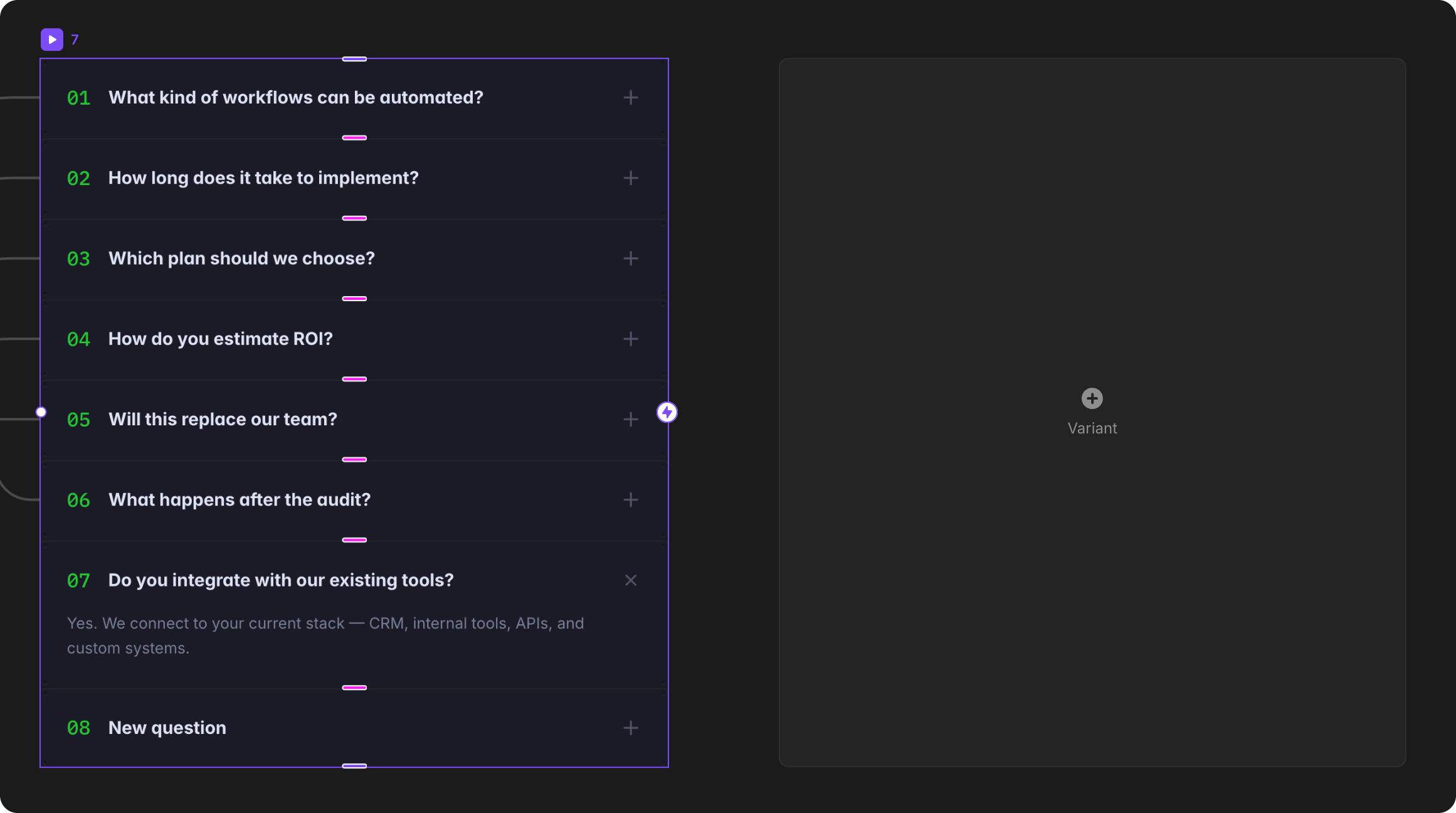
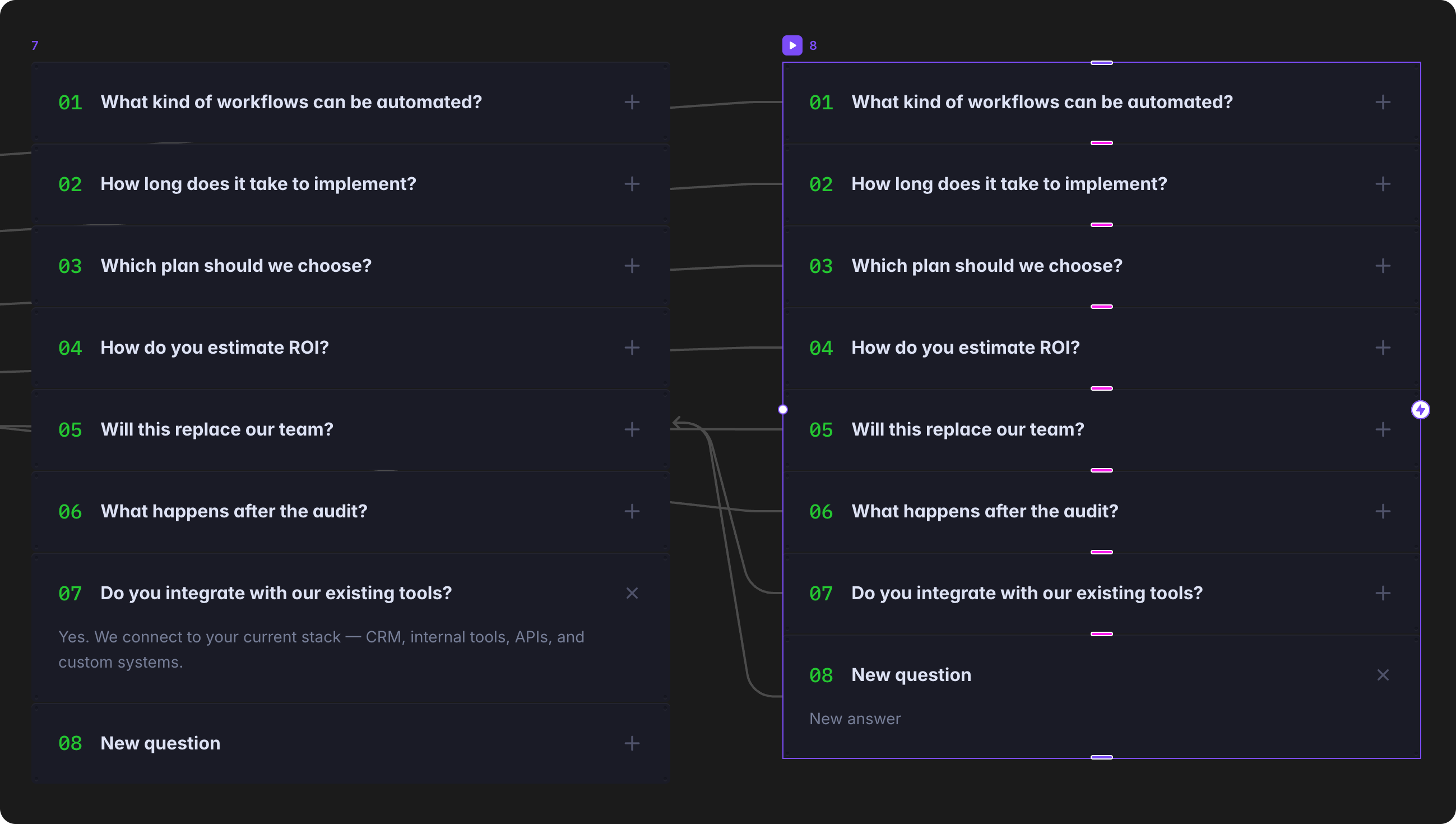
Step 2: Create a new variant for the expanded question
- Still in Edit Component mode
- Select the last variant button (e.g., the "7" button)
- In variant 7, make sure the new question 08 has Variant set to Closed
- Click + Variant button to create a new variant
- Name the new variant with the question number (e.g., "8")
Step 3: Configure the new variant
- Click on the newly created variant (e.g., "8")
- For all other questions (01-07):
- Select each CardFAQ
- In Properties, set Variant to Closed
- For the new question (CardFAQ with number 08):
- Select it
- In Properties, set Variant to Open (to show expanded state)
- This is the only question shown open in this variant
Step 4: Set up Interactions
- Go back to 0 | Primary variant
- Select the new question component (CardFAQ with number 08)
- In Properties, go to Interactions section
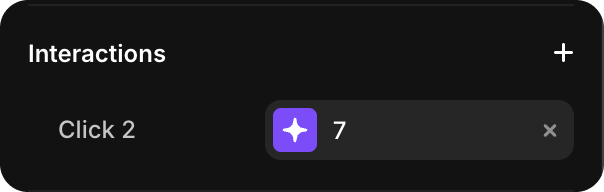
- Click 7 to change the interaction
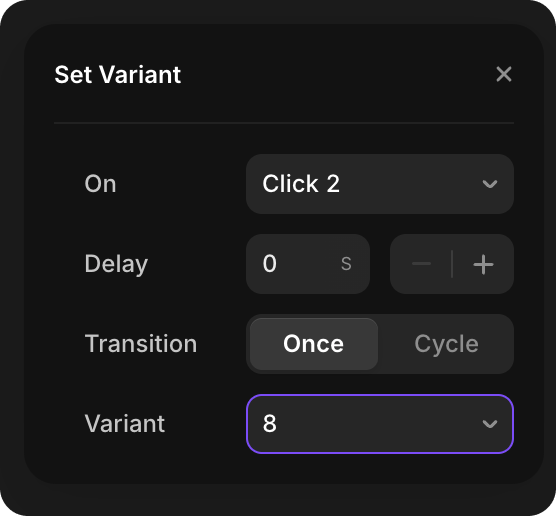
- Link the interaction to the new variant (e.g., variant "8")
Reduce the number of questions
- Click Edit Component on FAQAccordion
- In the 0 | Primary variant, select the question to delete (e.g., question 07)
- Press Delete key or right-click and select Delete
- Then delete the corresponding variant:
- Click on the variant number button (e.g., the blue "7" button)
- Press Delete key to remove that variant
- Update remaining question numbers if needed