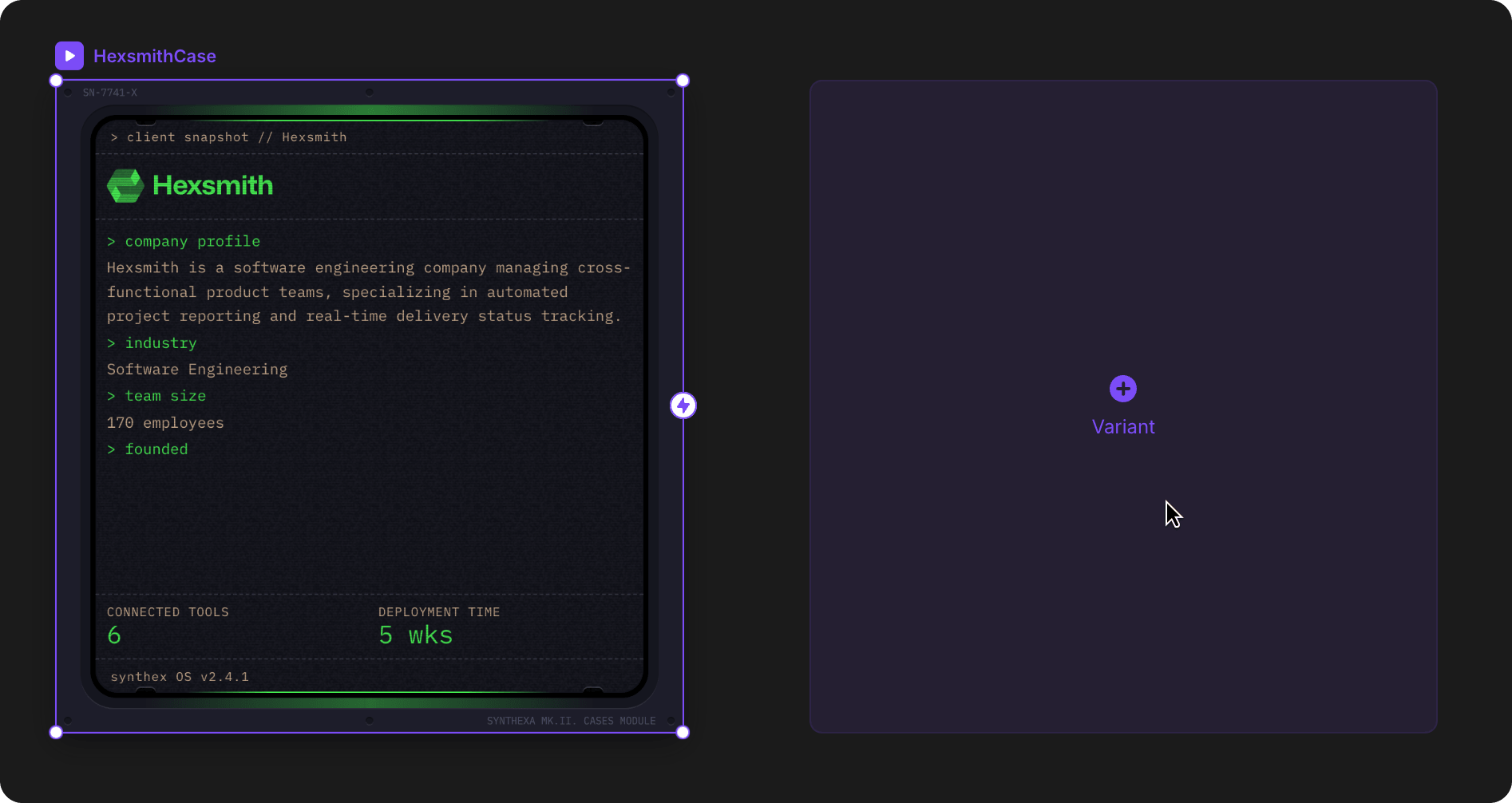
Appearance
TerminalCases
A company-specific case study component that displays automation success stories with terminal-themed dashboards. Used on both the homepage (rotating variants) and individual case detail pages (via CMS).
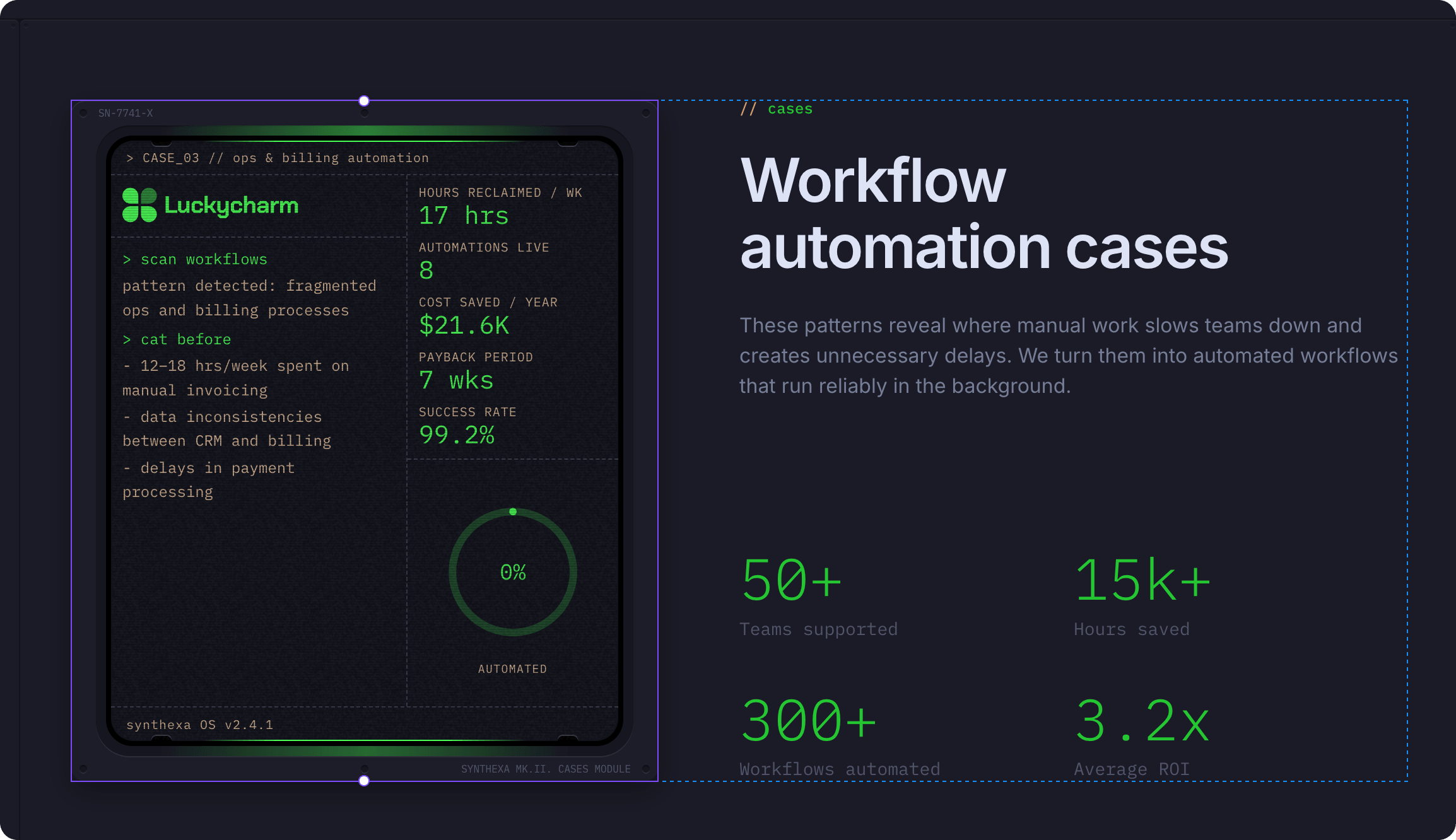
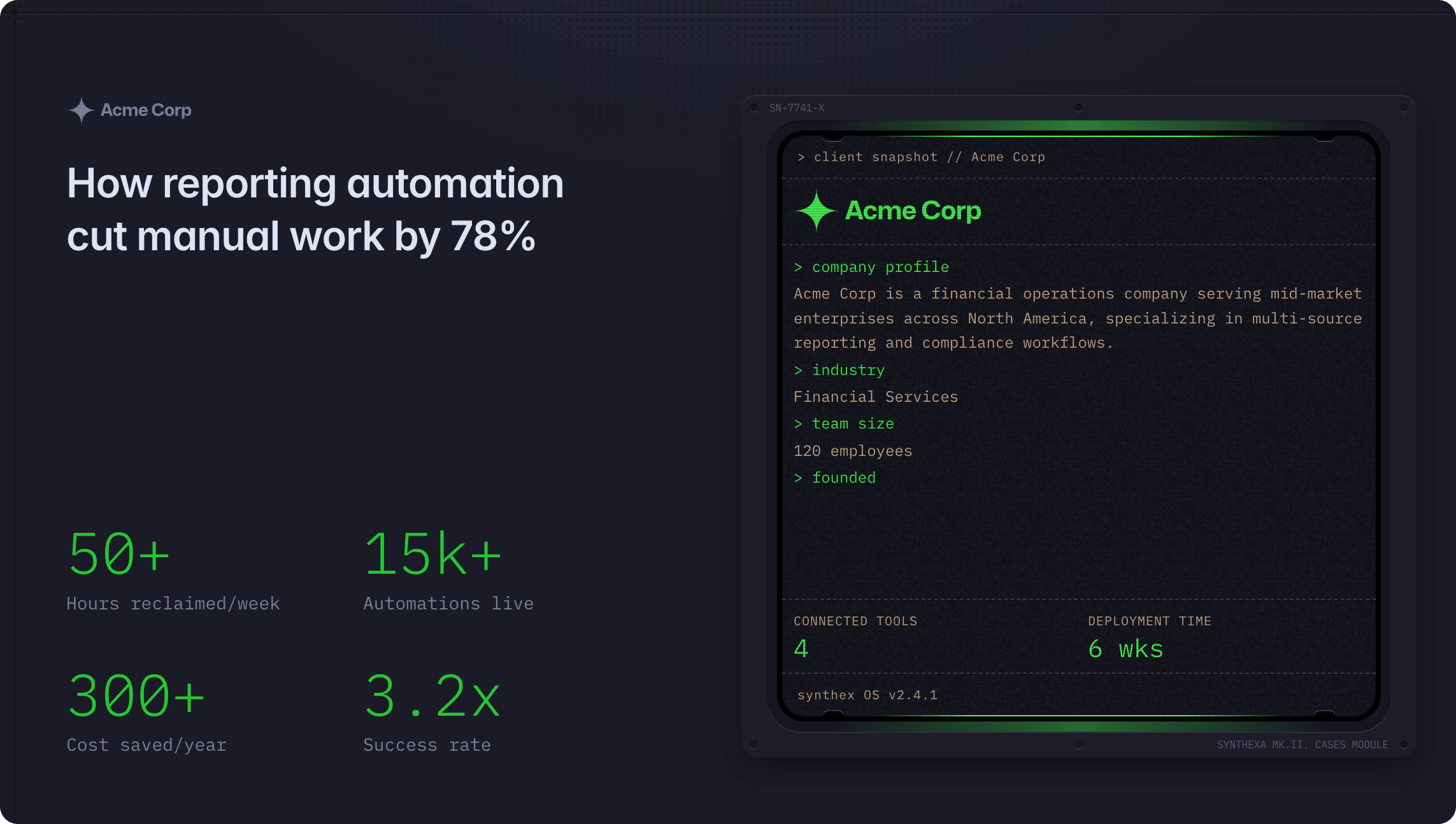
Overview
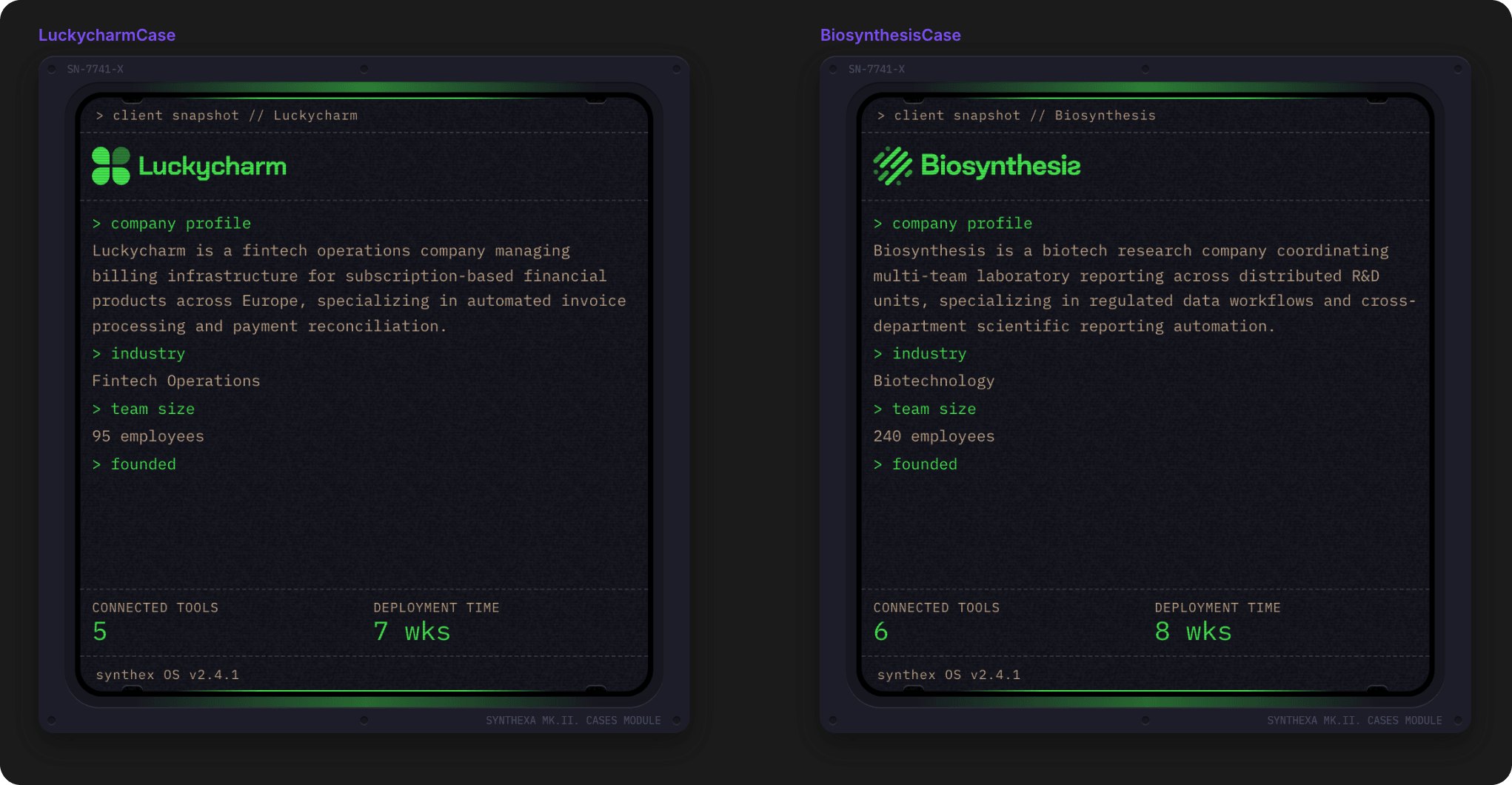
TerminalCases showcases client success with customizable company variants, each featuring:
- Company logo and branding
- Company profile and industry
- Automation metrics (hours saved, cost reduction, success rate, payback period)
- Connected tools count and deployment time
- Terminal-themed visual design with live metrics display
Component Variants:
- Home variants (suffix: Home) — Auto-rotating on the homepage
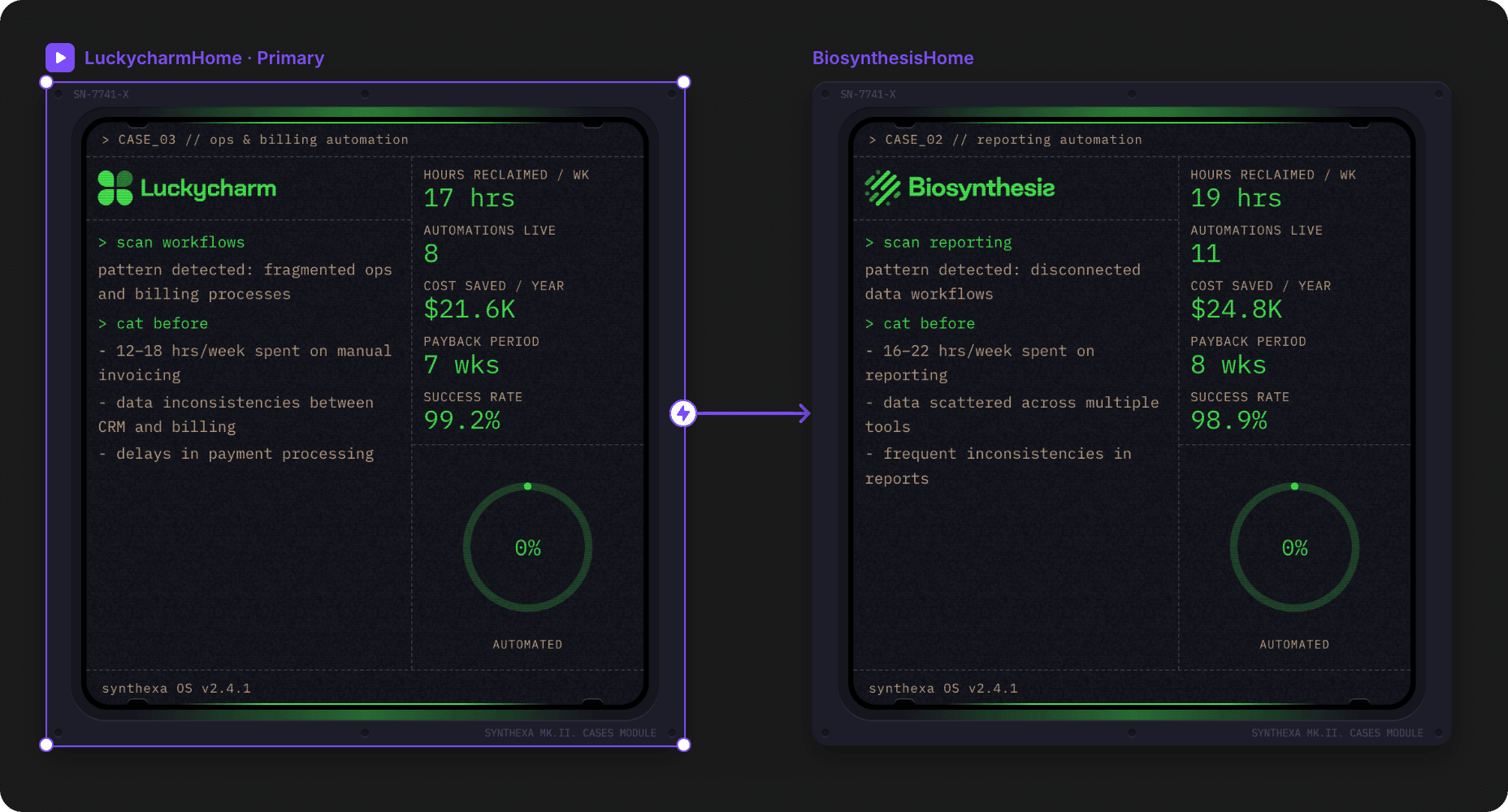
- Case variants (suffix: Case) — Individual case study pages linked to CMS
How to Use
On the Homepage
Homepage TerminalCases automatically rotate between Home variants:
- Select TerminalCases on the canvas
- Click Edit Component to see all Home variants
- The homepage displays 3 rotating variants (typically in a carousel)
- Each variant shows automatically as users view the page
On Case Study Pages
Case Study pages use CMS integration to display specific company variants:
- Open a case in the CMS
- In the Terminal Snapshot field, select the company variant dropdown
- Choose the corresponding Case variant (e.g., "LuckycharmCase")
- The terminal snapshot displays on the published case page
Editing Variants
Each TerminalCases variant contains an embedded TerminalDashboard. To customize it:
- Inside the variant, click on the TerminalDashboard
- Edit its properties for:
- Metrics panels — Add, remove, or reorder metric displays
- Colors — Terminal Primary/Secondary colors
- Layout — Panel arrangement and spacing
Refer to TerminalDashboard documentation for complete customization options.
CMS Integration
Cases Collection Field
In the Cases CMS, the Terminal Snapshot field automatically provides:
- Dropdown selector showing all available Case variants
- Visual preview of the selected variant
- Auto-linking to case data (company profile, metrics, etc.)
Setting Up a New Case
- Create a new case in the Cases CMS
- Fill in case details (company name, description, metrics, etc.)
- In Terminal Snapshot, click Insert
- Select Terminal → TerminalCases
- Choose your company variant from the dropdown
- The terminal snapshot auto-populates with company data
Add a New Company Case
- Duplicate an existing variant (click + Variant)
- Rename it with the new company name
- Click on the TerminalDashboard or select in the layers
- Create matching Home variant if needed for homepage rotation