Appearance
Cases Collection
The Cases collection powers your /cases portfolio page and case study detail pages.
Fields
Basic Information
| Field | Type | Notes |
|---|---|---|
| Featured Case | Boolean | Mark to display in the featured section on the Cases page |
| Company Logo | Image | Logo used in cards and case headers |
| Case Title | String | Main headline displayed on the case page and case card |
| Short Description | String | Short summary shown on the case card below the title |
Visual Content
| Field | Type | Notes |
|---|---|---|
| Terminal Snapshot | Rich Text | Terminal component preview with company info (see setup below) |
Metrics Section (KPIs)
| Field | Type | Notes |
|---|---|---|
| KPI 1 Label | String | Description of first metric (e.g., "Hours reclaimed/week") |
| KPI 1 Value | String | Numeric value (e.g., "26") |
| KPI 2 Label | String | Description of second metric (e.g., "Automations live") |
| KPI 2 Value | String | Numeric value (e.g., "9") |
| KPI 3 Label | String | Description of third metric (e.g., "Cost saved/year") |
| KPI 3 Value | String | Numeric value with optional currency (e.g., "$31.5K") |
| KPI 4 Label | String | Description of fourth metric (e.g., "Success rate") |
| KPI 4 Value | String | Numeric value with optional percentage (e.g., "99.5 %") |
Testimonial Section
| Field | Type | Notes |
|---|---|---|
| Testimonial Photo | Image | Portrait photo of the client representative |
| Testimonial Headline | String | Short quote headline shown above testimonial text |
| Testimonial Message | Rich Text | Full testimonial quote from the client |
| Person Name | String | Name of the testimonial author |
| Person Role | String | Job title of the testimonial author |
Case Content
| Field | Type | Notes |
|---|---|---|
| Challenge | Rich Text | Describe the business problem before automation |
| Solution | Rich Text | Explain how the company solved the problem |
| Case Story | Rich Text | Full editorial case narrative with structured headings |
Metadata
| Field | Type | Notes |
|---|---|---|
| Slug | String | URL path — auto-generated from case title |
Terminal Snapshot Setup
The Terminal Snapshot field displays a branded terminal component showing company info.
To add a terminal snapshot:
- Click the +Insert button in the Terminal Snapshot rich text field

- In the popup window, navigate to Terminal > TerminalCases and select the component
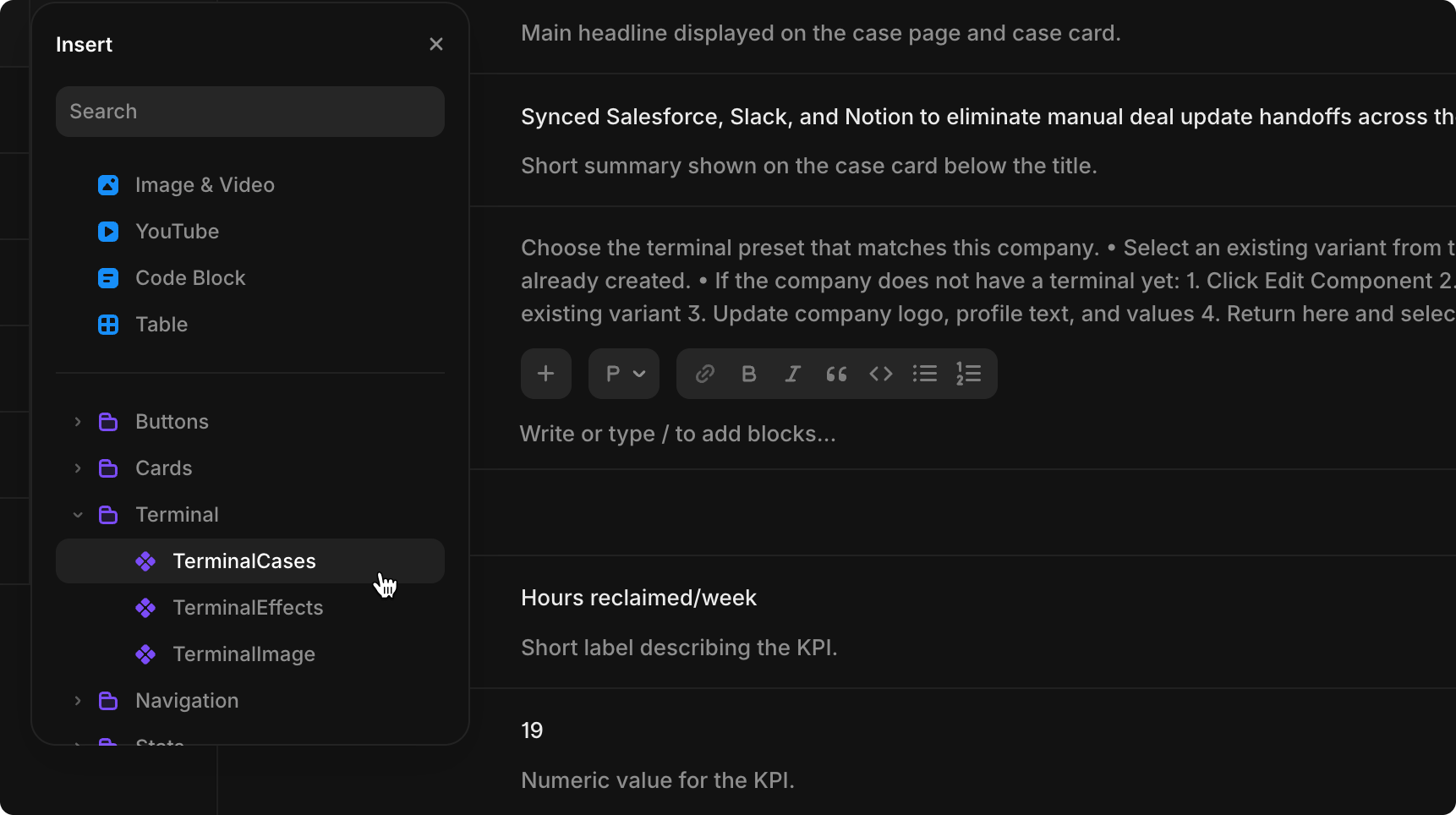
- Once added to the editor, click on the terminal component
- In the popup menu, select the company variant (e.g., "AcmeCorpCase", "LuckycharmCase")
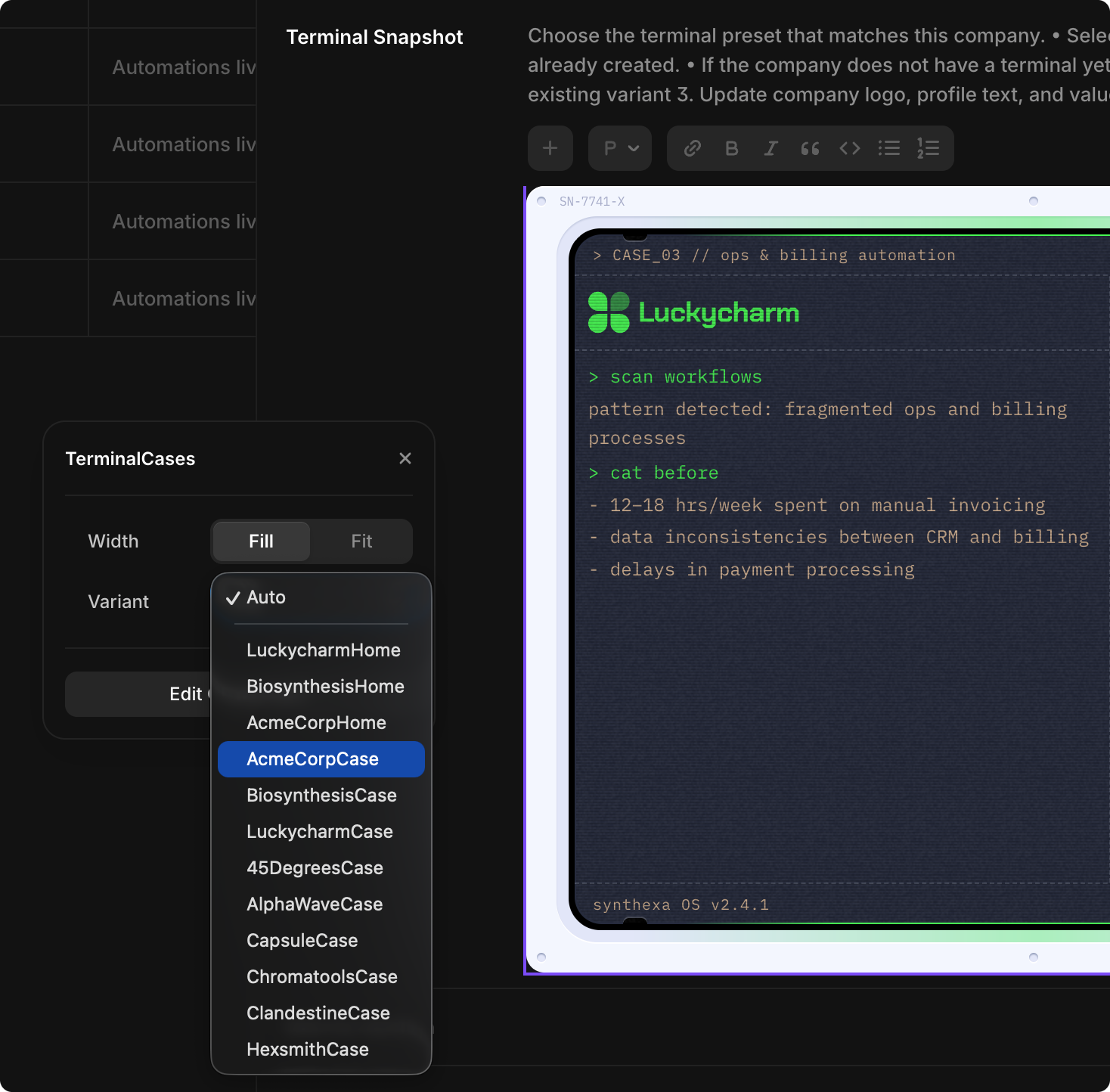
- The variant displays with pre-configured company info, metrics, and branding
TIP
Before adding a terminal snapshot: Make sure you've created a company variant in the TerminalCases component. See TerminalCases Component for detailed setup instructions.
Example Case Study
Featured Case: Yes
Company Logo: [ACME Corp logo image]
Case Title: "How reporting automation cut manual work by 78%"
Short Description: "Unified disconnected reporting systems into one automated workflow across 4 teams."
Terminal Snapshot: [Select ACME Corp variant]
KPI 1 Label: "Hours reclaimed/week" | Value: "26"
KPI 2 Label: "Automations live" | Value: "9"
KPI 3 Label: "Cost saved/year" | Value: "$31.5K"
KPI 4 Label: "Success rate" | Value: "99.5 %"
Challenge: "Before automation, Acme's reporting depended on manual exports from CRM, billing, finance, and internal dashboards. Teams spent hours every week consolidating spreadsheets, reconciling mismatched figures, and validating reports before they could be shared with leadership..."
Solution: "Synthexa connected every reporting source into a centralized automation flow that runs continuously in the background. Data is now synced automatically, validation checks happen in real time, and exceptions are flagged before they reach final reports..."
Case Overview: "Acme Corp replaced fragmented manual reporting with one automated workflow, turning a slow weekly process into a reliable real-time system used across four departments. As Acme expanded across multiple departments, reporting complexity increased faster than internal processes could handle..."
Testimonial Photo: [Jennifer Wu portrait]
Testimonial Headline: "Synthexa turned reporting from a weekly bottleneck into a fully automated workflow"
Testimonial Message: "Before Synthexa, our finance and operations teams were spending hours every week manually collecting data from disconnected systems. Reporting cycles were slow, fragmented, and prone to costly errors. As our company scaled, these inefficiencies became impossible to ignore. With Synthexa, reporting now runs automatically in the background across all departments. What used to require multiple people and manual validation now happens reliably without intervention. Our team can finally focus on decisions instead of spreadsheet maintenance."
Person Name: "Jennifer Wu"
Person Role: "VP Sales Operations"
Slug: how-reporting-automation-cut-manual-work-by-78 (auto-generated)
Auto-Generated Pages
Once saved, a new case study page is created at /cases/:slug with:
- Full case story and metrics
- Company logo and testimonial
- KPI dashboard
- Terminal snapshot preview