Appearance
ComparisonTable
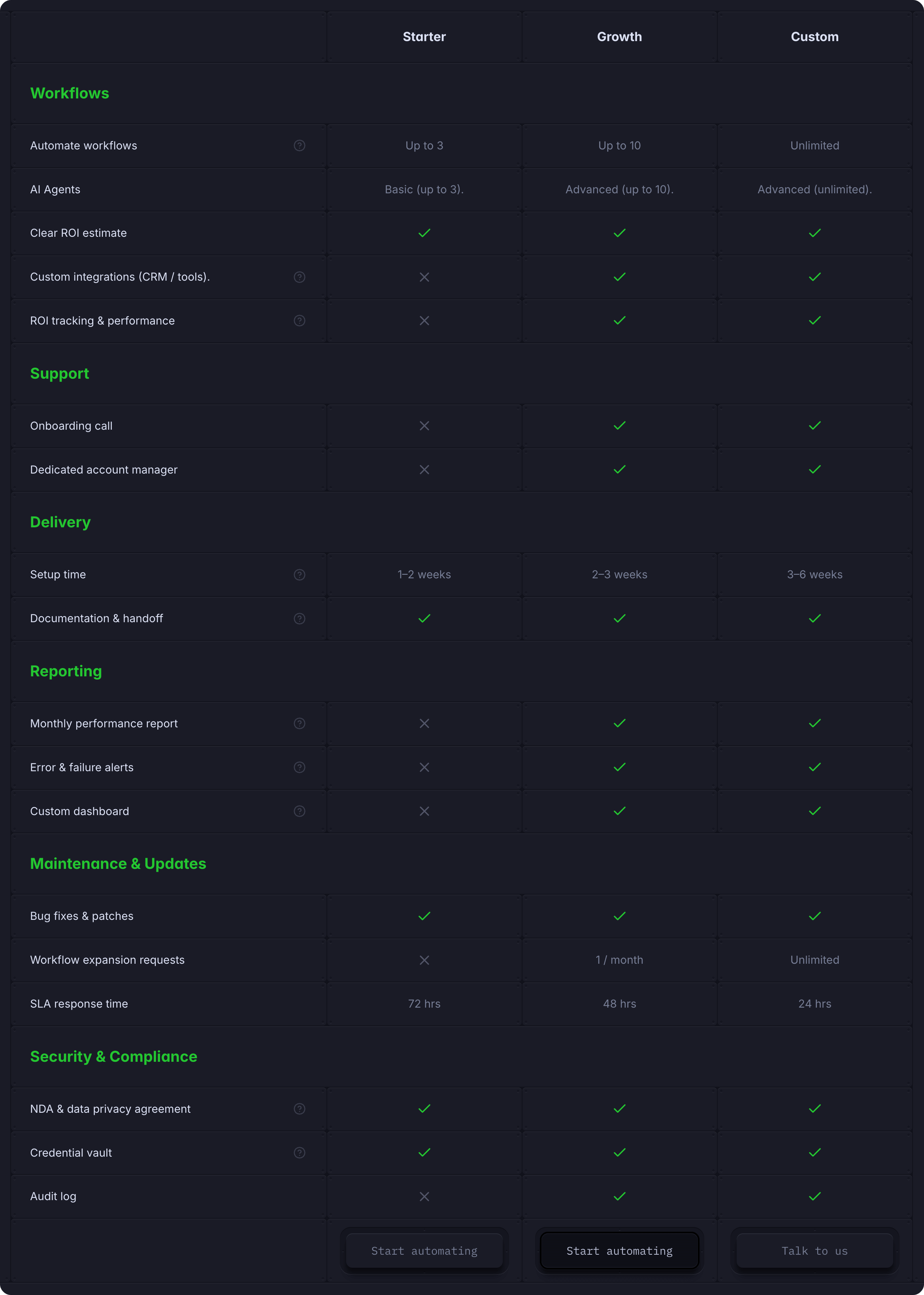
A pricing comparison table component that displays plan names, features across multiple columns, and CTA buttons. Works with the Pricing CMS collection to dynamically populate feature rows.
Overview
ComparisonTable displays a three-column comparison table showing what features are included in each pricing plan. The feature rows are managed through the Pricing CMS Collection, while the plan names and CTA buttons are configured directly on the component.
Key Features:
- Dynamically populated feature rows from CMS
- Customizable plan names and descriptions
- Editable CTA buttons with icons and links
- Responsive variants for desktop and mobile
- Section headers to group features by category
How to Edit
Select the Component
- Go to the Pricing page
- In the Layers panel (left sidebar), select ComparisonTable — or click the comparison table once on the canvas
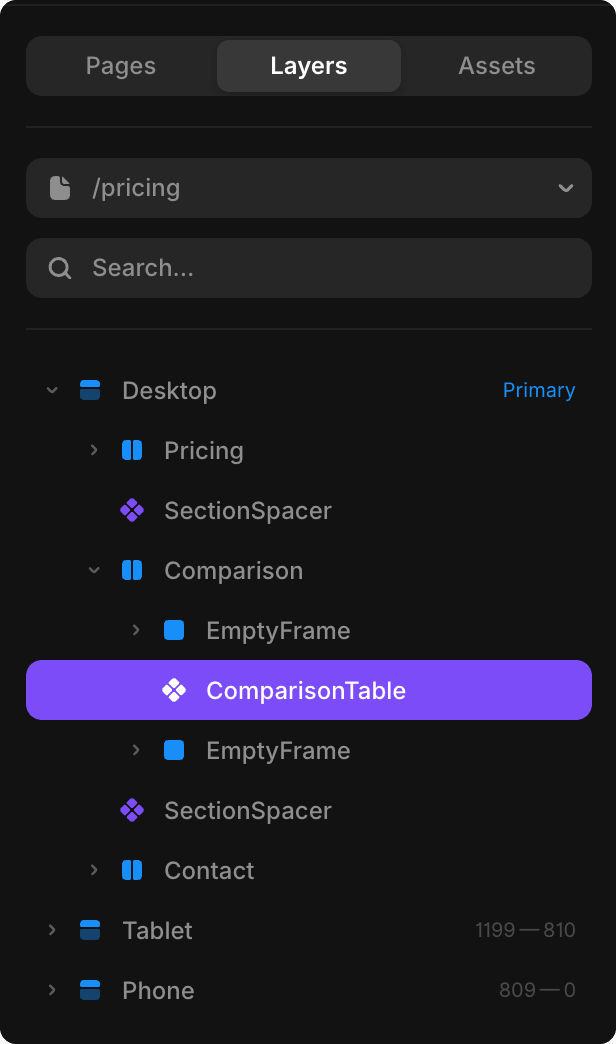
- Open the Properties panel (right sidebar)
Editing Plan Names
To customize the plan names displayed at the top of each column:
- With ComparisonTable selected, look at the Properties panel
- In the ComparisonTable section, update the plan name fields for Plan 1, Plan 2, Plan 3
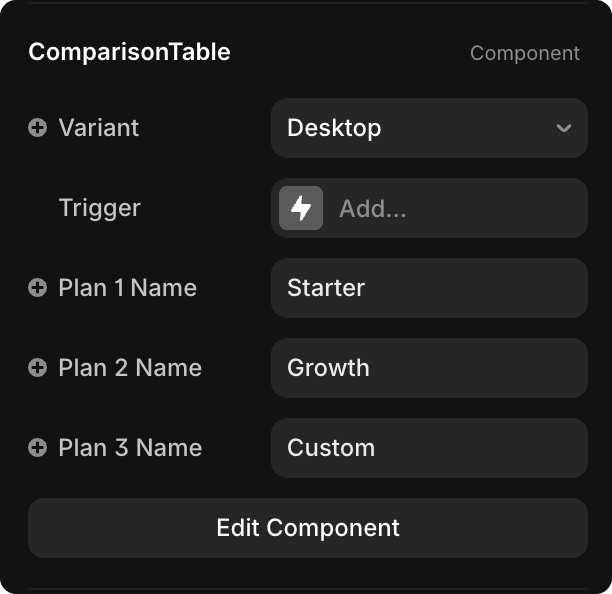
- Changes appear immediately in the table
Editing Plan CTA Buttons
To edit the buttons at the bottom of the comparison table:
- With ComparisonTable selected in Layers (or after clicking it on canvas), go to the Properties panel
- Click Edit Component (in the ComparisonTable section or at the top of Properties)
- The component enters edit mode. Make sure you're viewing the Desktop | Primary variant (visible in the top-left toolbar) so your button changes inherit to other component variants
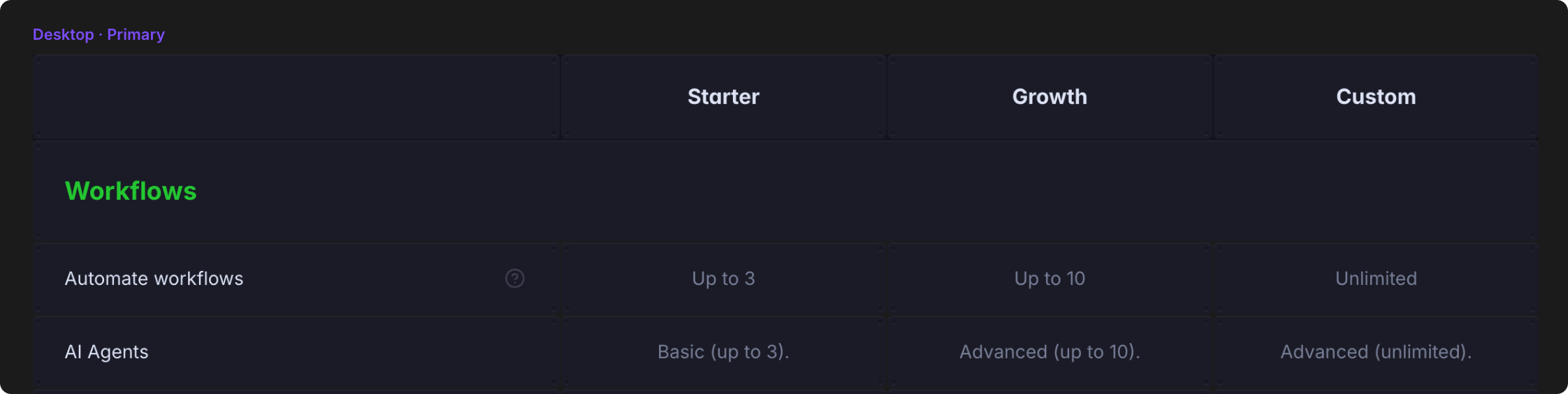
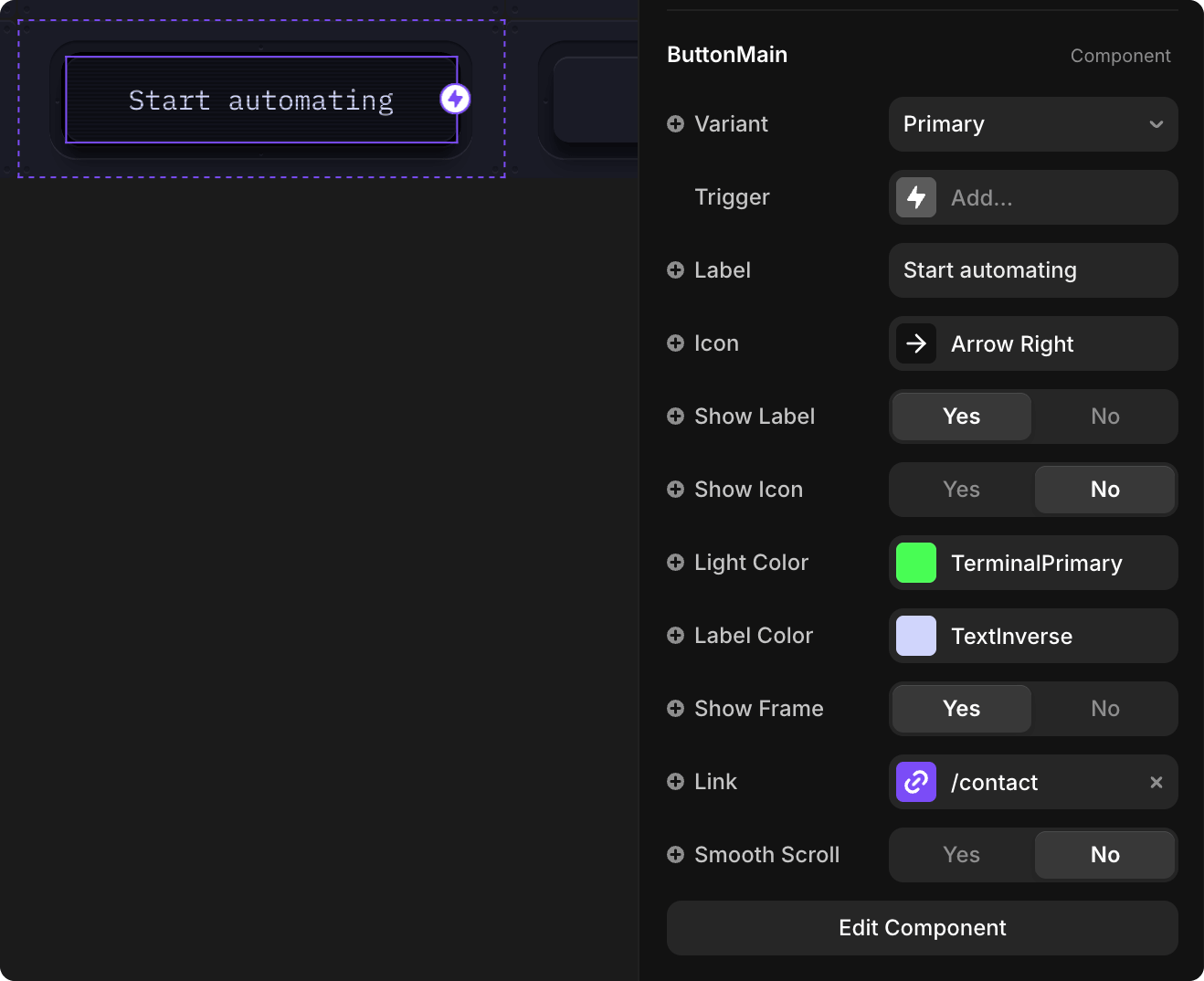
Select the button for the plan you want to modify (click on canvas or select in Layers — ButtonMain component)
In the Properties panel, update:
- Label — The button text (e.g., "Get Started")
- Icon — Show or hide an icon next to the button text
- Link — The URL the button links to
Managing Feature Rows
The comparison table feature rows are managed through the Pricing CMS Collection:
- Each CMS item creates one row in the table
- Rows can be either:
- Feature — A comparable row showing what's included in each plan
- Section — A category group header to organize features
- For each feature, you configure what text or icon to show in each plan column
See the Pricing Collection guide for complete instructions on adding and editing feature rows.
TIP
Plan prices, descriptions, and the main card layout are part of the Pricing page design. Adjust these directly on the canvas as needed. The CMS Pricing collection only controls the comparison table rows (features), not the plan cards themselves.